Creating a Route
A Route is a collection of one or more connected Waypoints
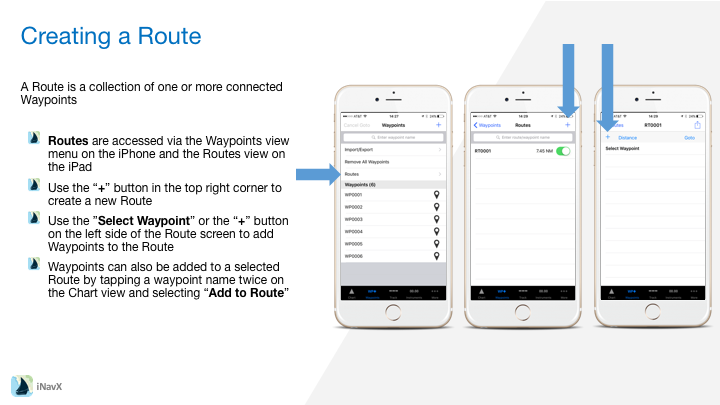
– Routes are accessed via the Waypoints view menu on the iPhone and the Routes view on the iPad
– Use the “+” button in the top right corner to create a new Route
– Use the ”Select Waypoint” or the “+” button on the left side of the Route screen to add Waypoints to the Route
– Waypoints can also be added to a selected Route by tapping a waypoint name twice on the Chart view and selecting “Add to Route”
Editing a Route
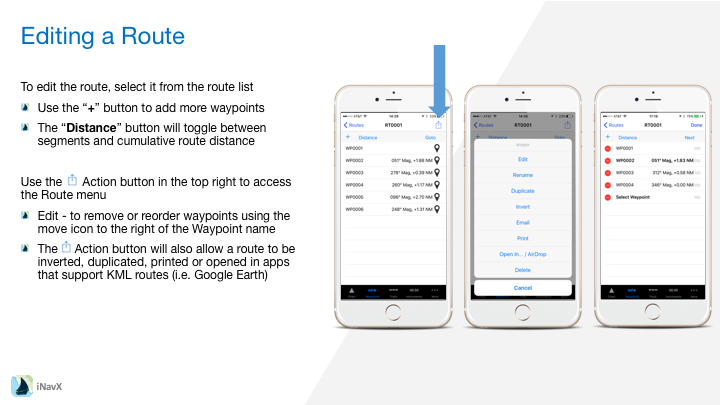
To edit the route, select it from the route list
– Use the “+” button to add more waypoints
– The “Distance” button will toggle between segments and cumulative route distance
Use the Action button (square with arrow pointing up) in the top right to access the Route menu
– Edit – to remove or reorder waypoints using the move icon to the right of the Waypoint name
– The Action button (square with arrow pointing up) will also allow a route to be inverted, duplicated, printed or opened in apps that support KML routes (i.e. Google Earth)
Navigating a Route
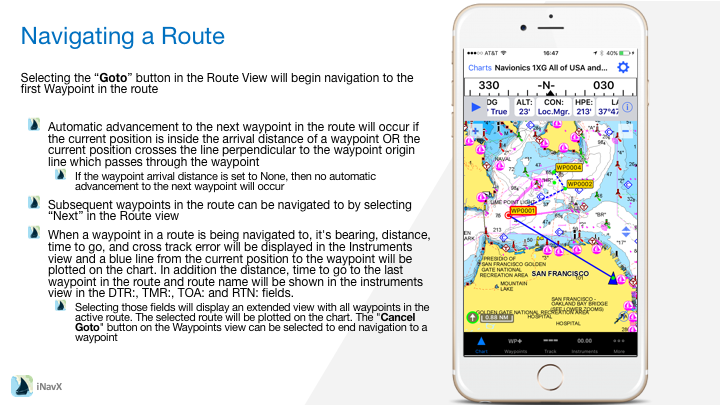
Selecting the “Goto” button in the Route View will begin navigation to the first Waypoint in the route
– Automatic advancement to the next waypoint in the route will occur if the current position is inside the arrival distance of a waypoint OR the current position crosses the line perpendicular to the waypoint origin line which passes through the waypoint
– If the waypoint arrival distance is set to None, then no automatic advancement to the next waypoint will occur
– Subsequent waypoints in the route can be navigated to by selecting “Next” in the Route view
– When a waypoint in a route is being navigated to, it’s bearing, distance, time to go, and cross track error will be displayed in the Instruments view and a blue line from the current position to the waypoint will be plotted on the chart. In addition the distance, time to go to the last waypoint in the route and route name will be shown in the instruments view in the DTR:, TMR:, TOA: and RTN: fields.
– Selecting those fields will display an extended view with all waypoints in the active route. The selected route will be plotted on the chart. The “Cancel Goto” button on the Waypoints view can be selected to end navigation to a waypoint