Create a Waypoint
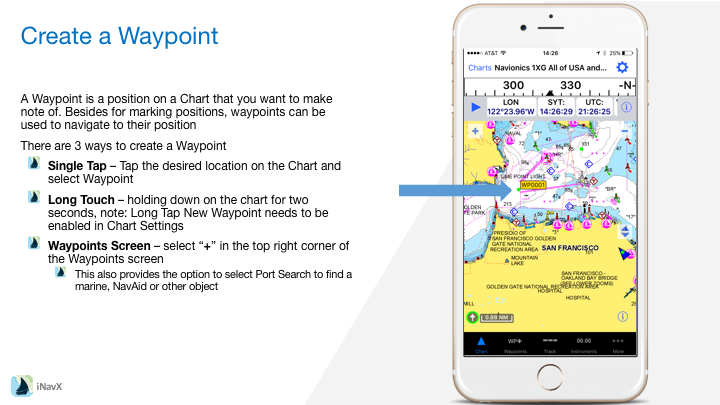
A Waypoint is a position on a Chart that you want to make note of. Besides for marking positions, waypoints can be used to navigate to their position
There are 3 ways to create a Waypoint
– Single Tap – Tap the desired location on the Chart and select Waypoint
– Long Touch – holding down on the chart for two seconds, note: Long Tap New Waypoint needs to be enabled in Chart Settings
– Waypoints Screen – select “+” in the top right corner of the Waypoints screen
– This also provides the option to select Port Search to find a marine, NavAid or other object
Managing Waypoints
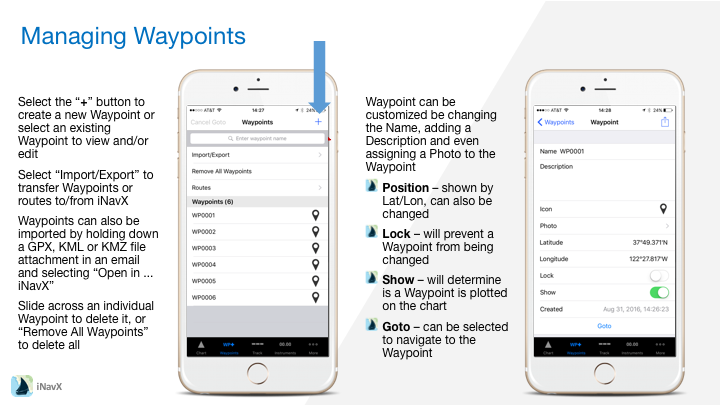
– Select the “+” button to create a new Waypoint or select an existing Waypoint to view and/or edit
– Select “Import/Export” to transfer Waypoints or routes to/from iNavX
– Waypoints can also be imported by holding down a GPX, KML or KMZ file attachment in an email and selecting “Open in … iNavX”
– Slide across an individual Waypoint to delete it, or “Remove All Waypoints” to delete all
Waypoint can be customized be changing the Name, adding a Description and even assigning a Photo to the Waypoint
– Position – shown by Lat/Lon, can also be changed
– Lock – will prevent a Waypoint from being changed
– Show – will determine is a Waypoint is plotted on the chart
– Goto – can be selected to navigate to the Waypoint
Editing Waypoints
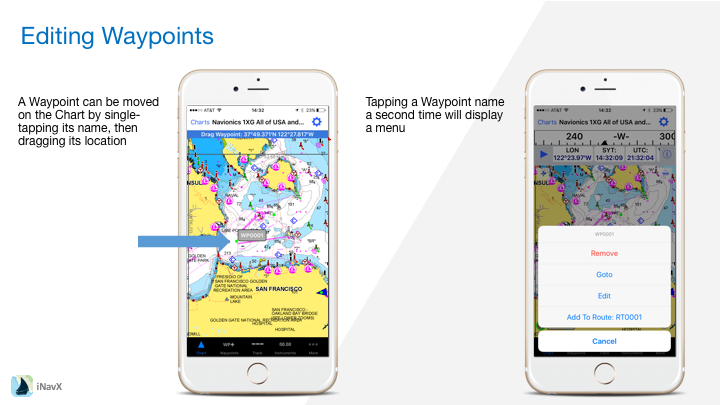
– A Waypoint can be moved on the Chart by single-tapping its name, then dragging its location
– Tapping a Waypoint name a second time will display a menu
Navigating to a Waypoint
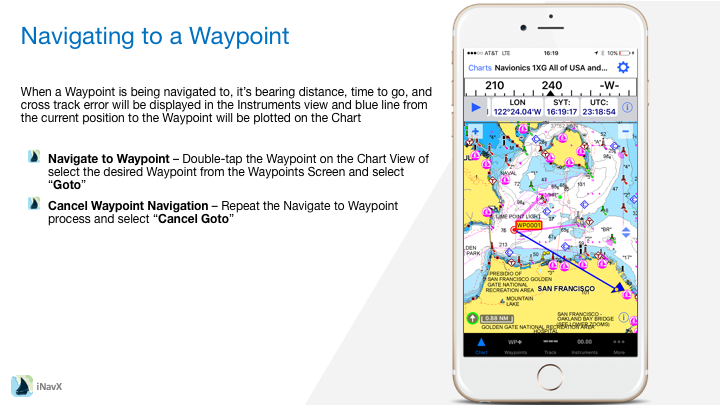
When a Waypoint is being navigated to, it’s bearing distance, time to go, and cross track error will be displayed in the Instruments view and blue line from the current position to the Waypoint will be plotted on the Chart
– Navigate to Waypoint – Double-tap the Waypoint on the Chart View of select the desired Waypoint from the Waypoints Screen and select “Goto”
– Cancel Waypoint Navigation – Repeat the Navigate to Waypoint process and select “Cancel Goto”